Our same-file compression test
Measured in Chrome on October 20, 2026 using this page, our original gradient-and-moving-card GIF and the actual downloaded outputs. The sample is deliberately color-rich, not a prediction for your file. Original canvas: 640 × 360 px. All tests below keep that canvas. Download the files to inspect the color changes yourself.
| Level | Original bytes | Output bytes | Smaller by | Dimensions |
|---|---|---|---|---|
| Light | 382,592 | 324,417 | 15.21% | 640 × 360, unchanged |
| Medium | 382,592 | 285,354 | 25.42% | 640 × 360, unchanged |
| Heavy | 382,592 | 178,068 | 53.46% | 640 × 360, unchanged |
Reduction = (original bytes − output bytes) ÷ original bytes × 100. Percentages are rounded only for display. Independent decoding found 12 frames in every file, each stored delay 100 ms, total 1200 ms. This result applies to this sample only.
Original test GIFLight outputMedium outputHeavy outputExact measurement record
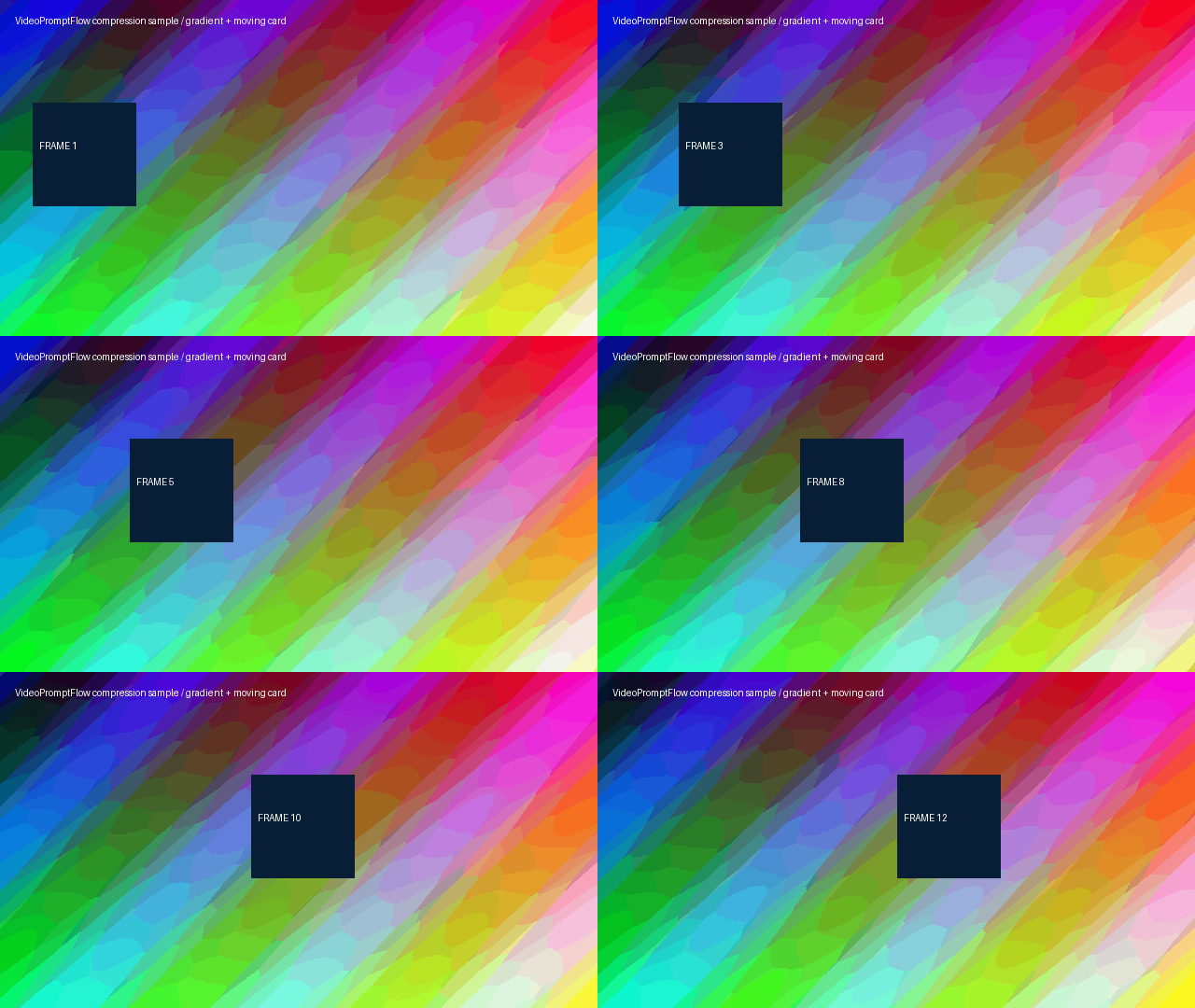
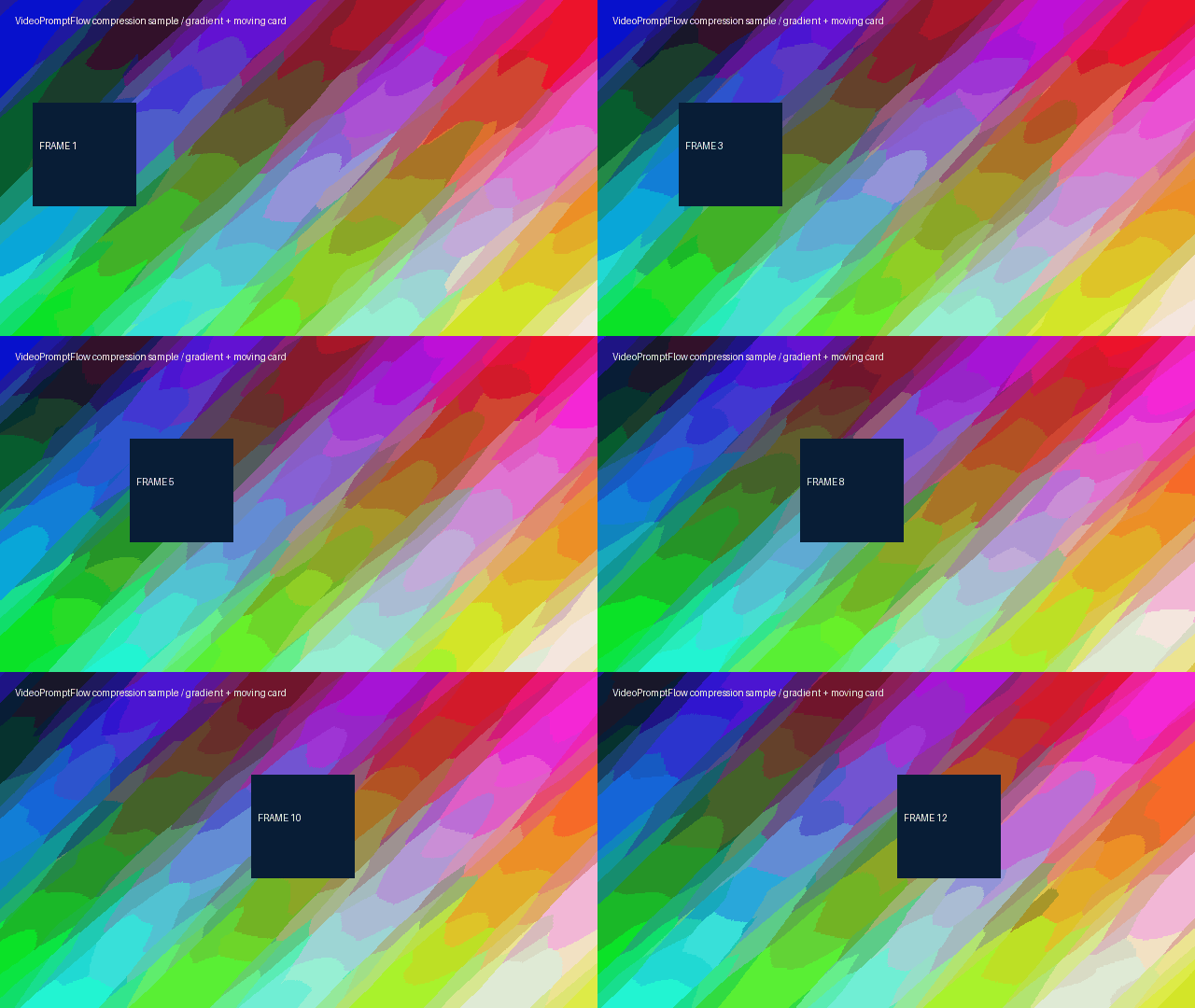
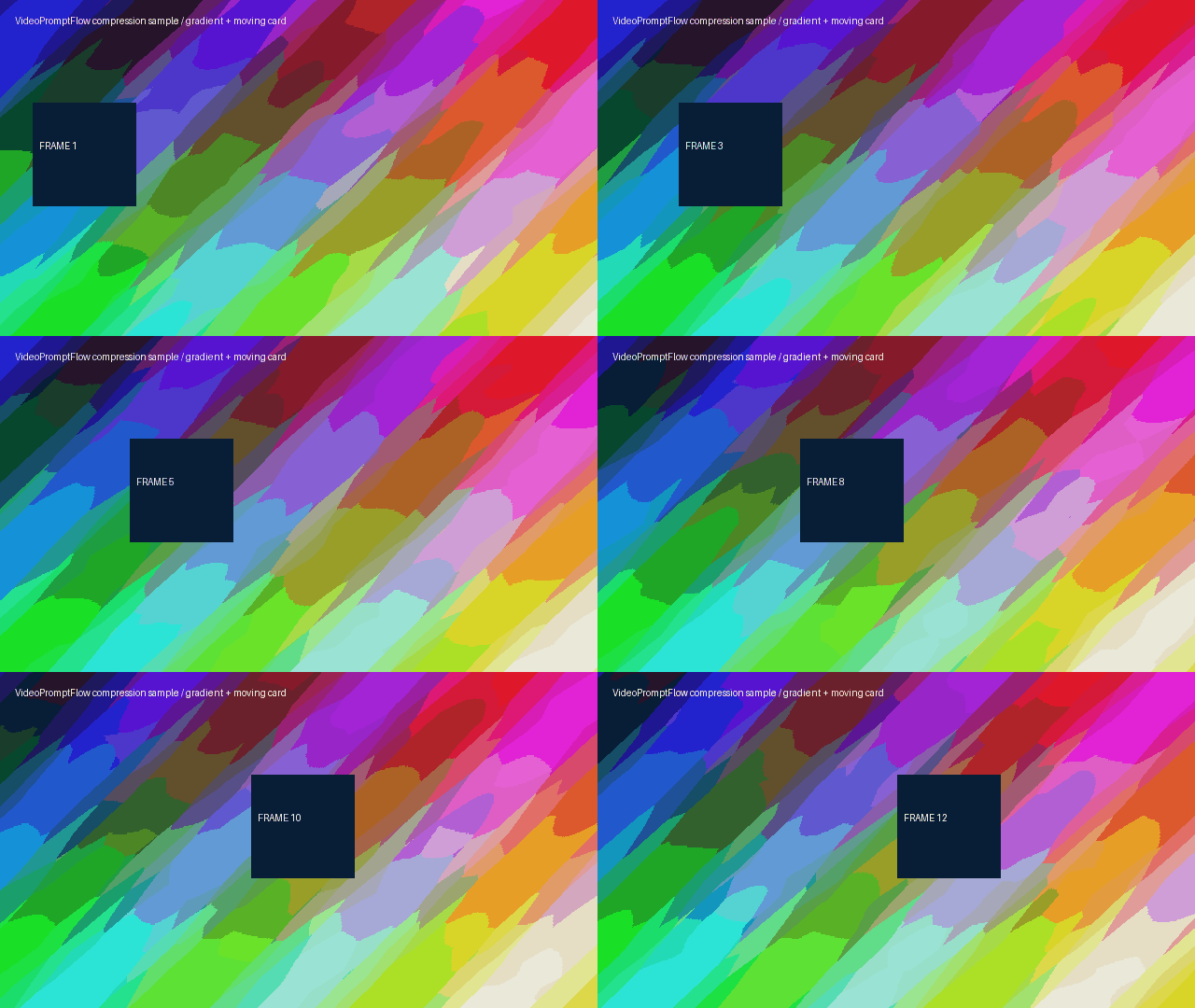
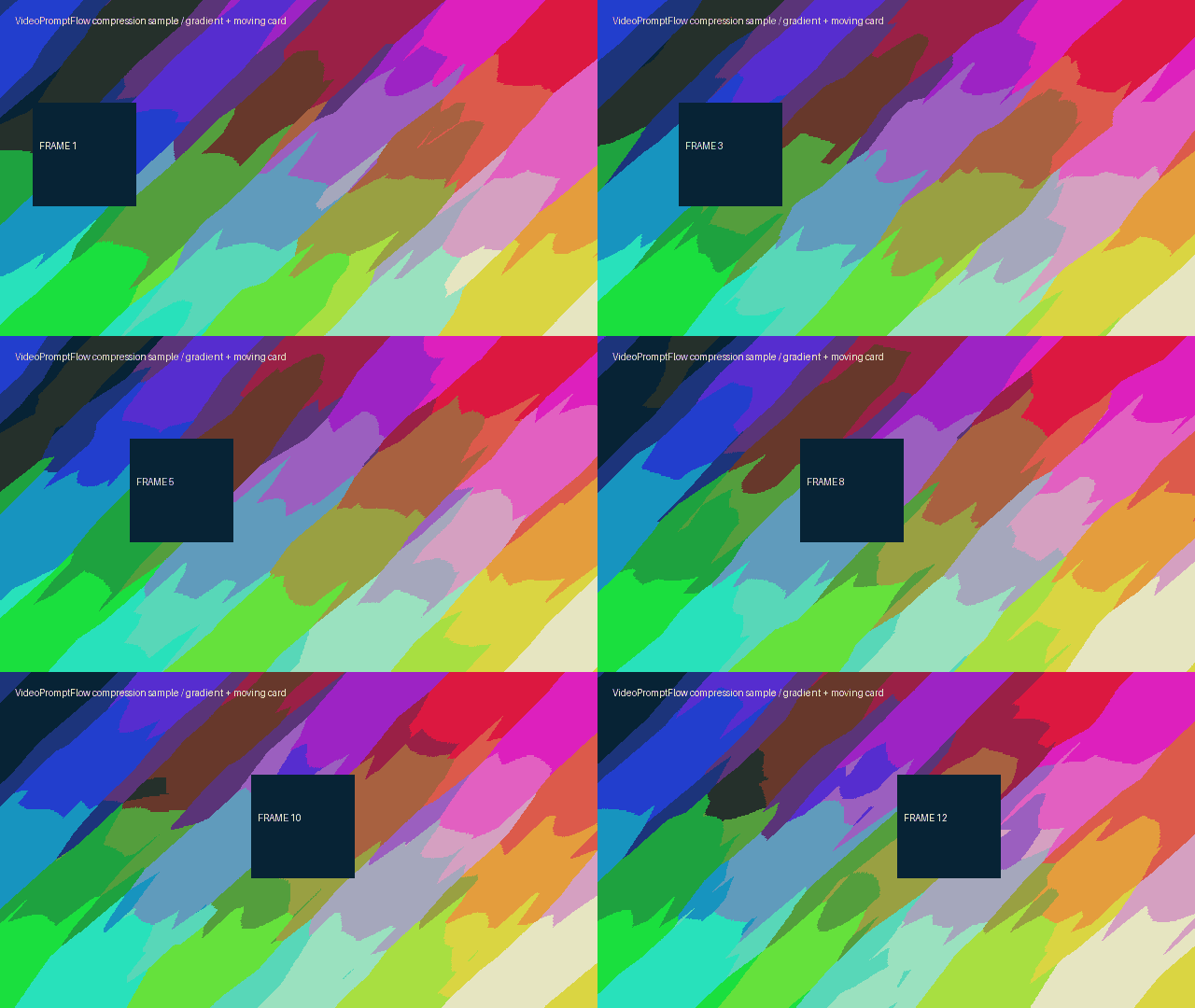
Reduce GIF size without guessing a quality percentage
There is no single reduction percentage that tells you whether your text will stay readable or your colors will still look right. Use the original and result previews at the intended display size. Check small lettering, smooth gradients and edges; also watch a complete animation cycle. If Heavy changes an important shade, go back to the original and try Medium or Light.
This tool changes the palette rather than setting a target byte size. Light allows up to 192 palette colors, Medium up to 96 and Heavy up to 32, including a reserved transparent entry. These presets use no dithering, so palette reduction can create visible color bands. These are the actual settings in this tool, not percentages of visual quality. No frame-rate reduction is requested. The exported GIF is set to repeat; source loop-count metadata is not preserved. Non-animation metadata is not retained.
A long-edge choice only shrinks an image that is larger than that edge. It preserves proportions with pixel rounding and never enlarges your source. Keep original dimensions when you need the current canvas. A smaller canvas can change fine detail, so compare it at its intended display size.
What if the result is not smaller?
Some GIFs already have a small palette and efficient frame storage. Re-encoding them can add bytes. This page checks the actual output size before offering a compressed download. If that setting does not reduce the file, it says so. Try a stronger palette reduction or a smaller long edge. The tool does not promise a fixed saving or a lossless result.
Only one GIF is selected at a time. Compression loads a WebAssembly engine and uses device memory. If the engine cannot finish, try a smaller source or output canvas. A failed or non-smaller result does not expose a download button. No account or watermark is added.
How can I reduce GIF size to my own byte budget?
Use your destination's actual byte budget as a separate check after a successful compression. A result can be smaller than the original and still exceed that budget. Compare the result's byte count directly with your target; do not treat the displayed reduction percentage as an upload acceptance check.
To calculate the required reduction, use (original bytes − target bytes) ÷ original bytes × 100. Both byte values must come from your own file and your destination's actual requirement. This page does not supply platform limits or promise to hit a particular target automatically.
Keep each candidate from the original source, compare its actual bytes and inspect it at the intended display size. Record the chosen level and canvas alongside the saved result so that a smaller canvas is not mistaken for a palette-only saving. Stop when the saved file meets your byte budget and its appearance is acceptable for your use; do not keep re-encoding an already reduced copy just to chase the percentage.
If you only need a thumbnail or one moment rather than an animated GIF, extract a still frame as PNG or JPG and compare its actual bytes.
Questions before you download
Does Heavy always give the smallest GIF?
Not necessarily. Colors, dithering, frame changes and the source encoding affect byte size. The table describes our sample only. Compare your own result instead of treating the label as a guaranteed saving.
Should I compress a GIF or convert it to MP4?
Use this tool when the destination requires a GIF. If you need a video file, read what changes when converting GIF to MP4 before choosing the output format.
Will a smaller file prove that frame timing is unchanged?
No. File size is not a timing measurement. Our unequal frame-delay experiment explains how to inspect timing separately.
Are my GIFs sent to a compression service?
No. The page downloads its engine files, then reads and encodes your selected GIF inside the browser. The GIF bytes are not sent to a server. Optional site analytics are controlled separately through the site's consent choice and privacy policy.
For a destination canvas rather than a byte target, resize GIF width and height using official dimension references.
For a playback-order change instead, reverse GIF frames and check the saved delay sequence.