LOCAL CONVERSION / FIELD NOTES
Convert GIF to MP4: what changes in the saved video?
Choose a GIF in the gif to mp4 tool, set the output size and frame rate, then select Convert to MP4 and Download MP4. This version exports one silent animation cycle. Its preview repeats, but that repeat setting is not added to the downloaded file.
Published October 15, 2026 · Based on this tool’s implementation and a saved conversion test
Open the local converter ↗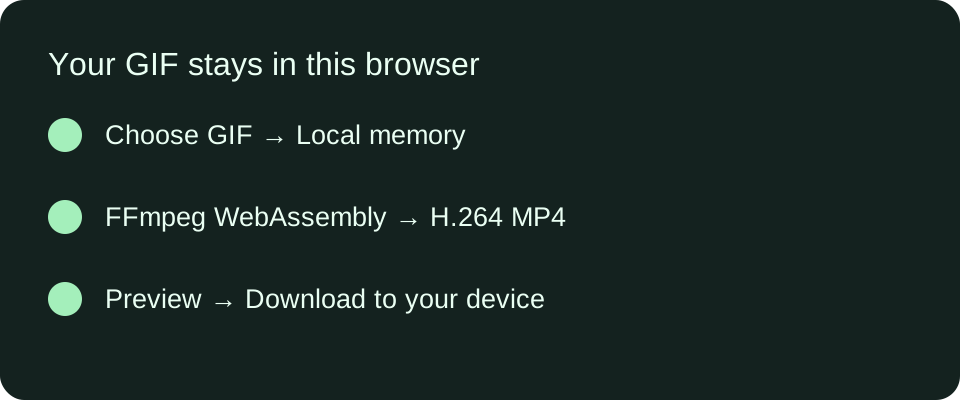
What this version actually does
We checked the controls against the converter code rather than assuming that every GIF converter behaves alike. The source selector accepts a GIF file. Before enabling conversion, the tool reads the GIF signature and the canvas dimensions from the beginning of the file. A matching filename extension alone is not the validation step. A valid header also does not prove that every later frame is intact; decoding can still fail during conversion.
The size slider changes the proposed output dimensions and the displayed source preview. It does not rewrite a video you already created. After changing size or frame rate, convert again and download the new result. If you saved an earlier result, that saved file keeps its previous settings.
Our size calculation multiplies each source dimension by the selected scale, rounds down to an even number, and uses a minimum dimension of 2 pixels. That rule is visible in the current app.js implementation. For a width W and scale S expressed as a fraction, the output width is max(2, floor(W × S ÷ 2) × 2); height follows the same rule. This is a description of this tool, not a universal rule for every MP4 encoder.
The encoding command selects H.264, a yuv420p pixel format, and no audio. It ignores the GIF loop instruction and encodes one cycle. The preview element separately has its loop attribute enabled. Keep those two layers separate when checking a result: watching the page repeat does not mean that repeated cycles have been baked into the MP4.
A saved test you can inspect
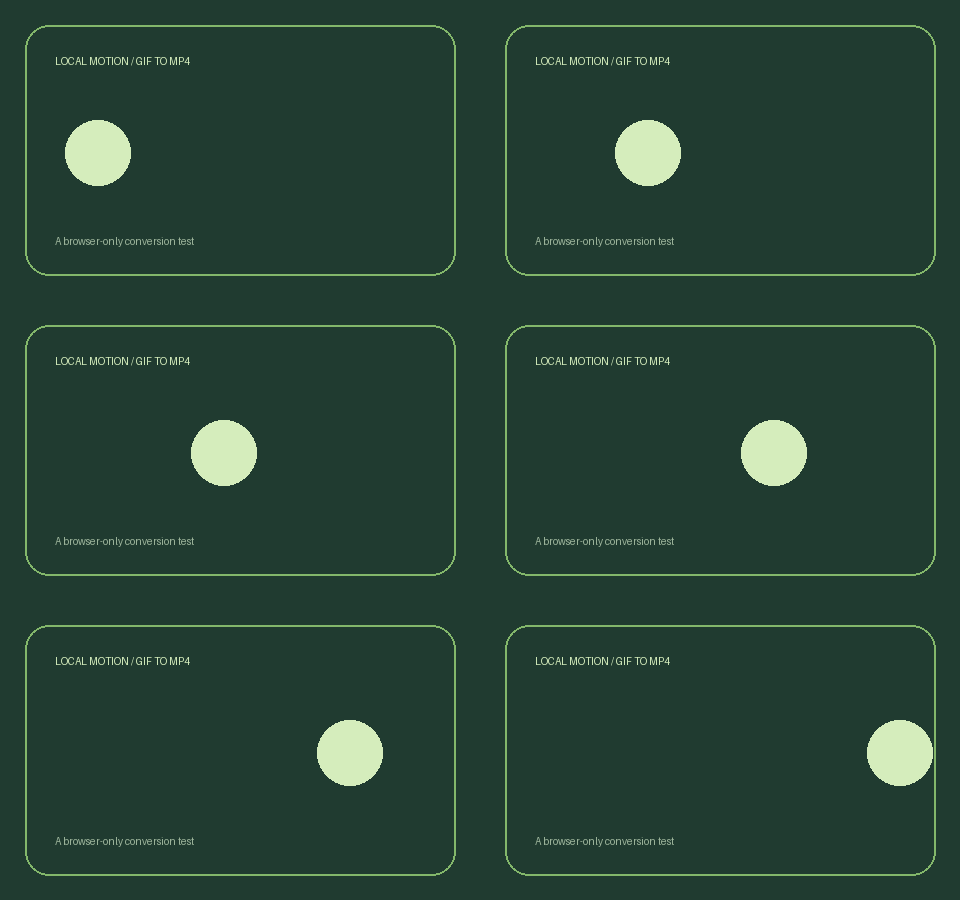
In our browser conversion test on October 15, 2026, the generated source GIF had a 480 × 300 pixel canvas. We selected a 90% output size and 24 fps. The downloaded MP4 was 432 × 270 pixels and 27,110 bytes. These are measurements from that specific saved output, not a promise about your file size or how quickly another device will convert.
| Item | Observed value | Where it comes from |
|---|---|---|
| Source canvas | 480 × 300 px | Saved test GIF header |
| Selected settings | 90%; 24 fps | Browser conversion test record |
| Output canvas | 432 × 270 px | Saved MP4 video track |
| Output size | 27,110 bytes | Downloaded file length |
The dimensions follow the implementation’s calculation: 480 × 0.9 = 432 and 300 × 0.9 = 270. Both values are already even, so the rounding step makes no further change in this sample. This example therefore does not demonstrate an odd-dimension edge case. We have not used it to claim that rounding is visually lossless.
Our sample is a generated animation, not a customer upload. You can inspect the source GIF and the actual downloaded MP4. Keep the original GIF when testing your own files, so you can compare the whole visible frame and the motion instead of relying on the extension or a download message alone.
A check before you share
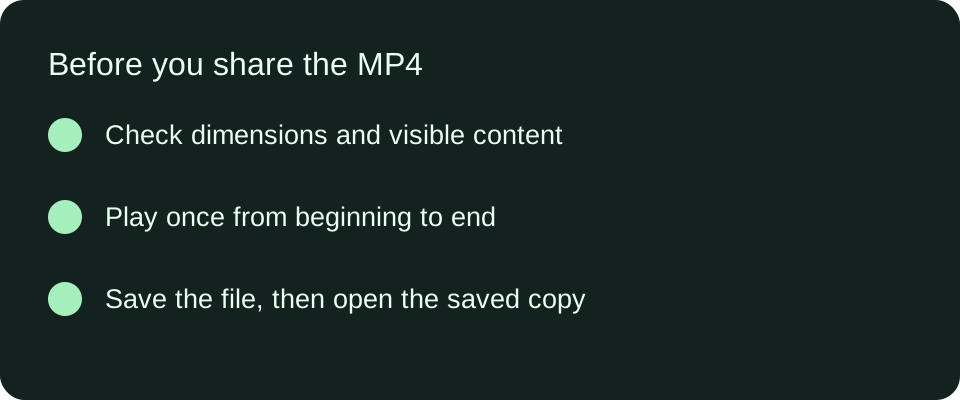
Begin at the start of the preview and watch through the end. Check small text, edges, and any previously transparent areas. This version uses a black background for transparency and does not expose a background color control. If that changes the intended appearance, keep your source file and prepare the background before using this converter.
Download the result and open that saved copy in the destination player or editor. The page preview confirms playback in the current browser, while the saved-copy check confirms that you are using the intended output. Large GIFs can exhaust browser memory. If conversion fails, retry with a smaller source or a smaller output size; we do not have a measured universal maximum that applies to every device.
Questions before converting
Will the file be sent to a conversion server?
This tool fetches its static video engine from this website and performs the conversion in your browser using FFmpeg WebAssembly. It does not send the selected GIF to a conversion API. Downloading the website’s code still needs a network connection; local processing is a statement about your media, not a claim that the website never contacts its host.
Does a higher frame rate restore missing detail?
The control chooses an output frame rate. It is not an enhancement model and does not recover details absent from the source. Compare the saved output with your GIF and choose the result that fits your use.
Can I add sound or edit the video here?
This version makes a silent MP4. It does not offer an audio track, trimming, or a multi-clip timeline. Download the result for later work in an editor if you need those functions.
Related reading
Ezgif’s GIF to MP4 page explains background and loop options. CloudConvert’s conversion page introduces the two formats. FreeConvert’s MP4 converter documents additional encoding controls. Their settings differ from this tool; our sample measurements describe only our own implementation.