SOURCE INSPECTION / FIELD NOTES
GIF viewer checks before converting to MP4
Use the source preview to check that a picture actually appears and animates. In this gif to mp4 tool, a Ready message means the header check passed; it does not prove the whole GIF is intact. Our truncated sample passed that check without producing a decoded preview.
Published October 16, 2026 · Original source-picker experiment
Open the local converter ↗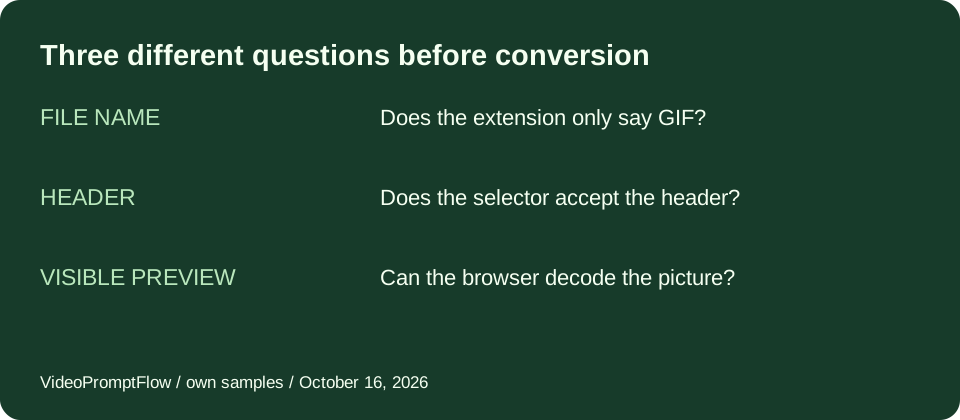
Our three-file source check
We used an original generated GIF from our earlier conversion test to prepare three local files. The normal file kept the complete source. The truncated file kept only its first 20 bytes, including the original header and canvas dimensions. The third file contained plain text and was named with a .gif extension. None was a visitor upload, and none was sent to an outside analysis service. We selected them in the live VideoPromptFlow tool in Chrome on October 16, 2026.
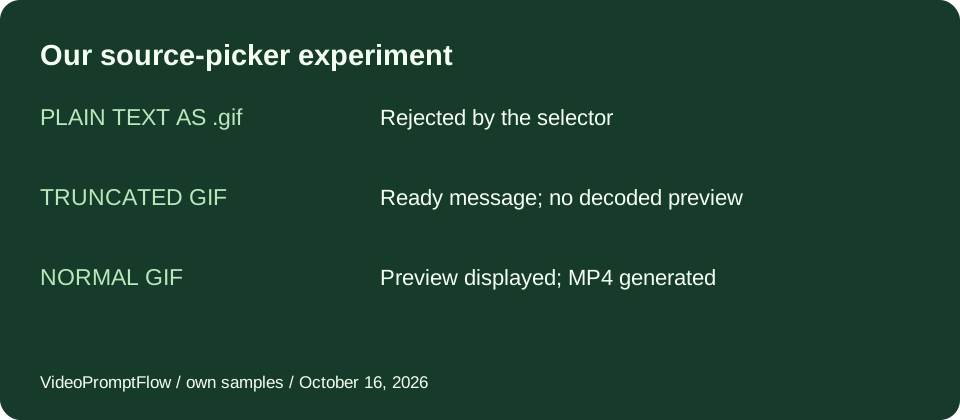
We started on a fresh tool page and selected the renamed plain-text file first. The page displayed “Please choose a valid GIF file.” The source panel stayed hidden and the Convert to MP4 button stayed disabled. This is a measured rejection in that initial state. It does not mean the tool can detect every damaged GIF; a filename alone was simply insufficient to pass this particular selector.
Next we selected the truncated source. The page displayed “Ready. Adjust your settings and convert.” It showed a source size of 480 × 300 pixels, and the conversion button became enabled. However, the preview image reported a decoded natural width of zero. The browser had finished attempting to load the image, but it had no decoded picture to display. We did not treat the Ready message or the dimensions label as proof of an intact animation.
Finally, we used Replace to select the normal source on the same page. The preview image reported a natural width of 480 pixels and the source label showed 480 × 300 pixels. We then selected Convert to MP4 with the displayed default size and frame rate. The page produced a video preview and displayed “Done. Preview your video or download the MP4.” The result label showed 480 × 300 pixels and 24 fps. The automated download-event check timed out, so this experiment records a generated browser result, not an independently checked downloaded copy.
Renamed plain text
Selector rejected it. No source preview was enabled.
Header-only fragment
Ready message appeared. The image had no decoded preview.
Complete source
Preview decoded. A browser MP4 result was generated.
Why Ready is a limited signal here
We checked those observations against the current app.js. The selector reads the beginning of the file, checks for a GIF signature, and reads the canvas width and height. It then assigns the file to an image preview and enables conversion. It does not wait for that image to decode before displaying Ready. A header check and a complete image decode are therefore separate steps in this implementation.
The truncated sample illustrates that difference directly: its surviving header still described the original canvas, even though the remaining bytes did not provide a usable image. The reported dimensions were header information, not evidence that the browser had found a complete set of frames. We did not run this truncated file through the video encoder in this experiment, so we do not claim an exact conversion error or repair result for it.
These observations are deliberately narrow. A visible image is a stronger check than an accepted extension, but it is not a frame-by-frame integrity report. This page does not measure every frame, disposal method, palette, or delay in the normal source. The tool’s preview has no frame stepping or timing inspector. Keep that limit in mind when using it as a quick GIF viewer before conversion.
A practical viewing checklist
Keep an unchanged original. Select the file, read the source label, and check whether the image actually appears. Watch the visible animation through a complete motion cycle rather than checking only its opening picture. Look for missing content, unexpected blank areas, and a jump at the end. Then inspect the resulting MP4 in the player where you intend to use it.
If the preview is blank, do not infer that an enabled button has repaired the file. Return to the original source or obtain a complete copy. This version does not reconstruct missing GIF bytes. A browser may also run out of memory with a large source; our small sample experiment does not establish a universal size limit.
Questions from our source checklist
Does changing a filename to .gif make it a GIF?
No. In our renamed-text sample, the selector rejected the file despite its extension. The current code checks a GIF signature before enabling conversion. Renaming does not create the missing image structure.
Does a valid header prove all frames are intact?
No. Our truncated source retained enough header data to show its canvas dimensions, but its preview did not decode. A complete frame or timing analysis needs information beyond those initial header bytes.
Is this a frame-by-frame GIF viewer?
No. The homepage gives a visual source preview and a conversion workflow. It does not expose frame stepping, frame counts, per-frame delays, or disposal settings. This guide explains how to interpret that limited preview honestly.
Related checks and sources
Check what changes in the saved MP4 after conversion, and separate preview looping from file repetition. For a different inspection workflow, Ezgif’s animated GIF analyzer describes frame counts, delays, and disposal information. We studied that separation of global and frame detail; we did not upload these samples there or copy its instructions.