REPRODUCIBLE GUIDE · 26 OCTOBER 2026
GIF to sprite sheet for VRChat
For VRChat animated emoji, pack decoded GIF pictures into a square PNG grid in reading order; if the GIF has unequal frame delays, account for those holds before choosing a fixed playback FPS.
Download the worked example below to see why exporting each picture once can change the animation's timing.
Which VRChat workflow is this for?
This guide targets custom animated emoji, not avatar materials. The official VRChat Inventory page describes a square sprite-sheet layout, left-to-right then top-to-bottom ordering, a frame-count/FPS filename convention, and the Enable Sprite Sheet Mode control. It specifies a 1024 × 1024 image for animated emoji. It also says custom emoji uploading requires VRC+. These are platform instructions from VRChat Wiki: Inventory, Upload requirements, read on 26 October 2026.
An avatar shader is a different destination. Do not assume that its rows, columns, frame count or timing controls match the emoji uploader. Check that shader's own instructions before using a sheet there. The files below are reproducible packing examples; we have not uploaded them to a VRChat account or verified their in-client appearance.
Our source has unequal holds, not unequal picture sizes
We generated an eight-picture GIF with Python and Pillow 13.0.0. Each picture is 96 × 96 pixels, with a visible source number, a moving colored square and transparent margins. The stored delay array is [100, 200, 300, 400, 500, 600, 700, 800] ms. Reading the saved source.gif gives 8,141 bytes and a cycle of 3,600 ms. Encoding uses a fixed 256-entry palette, transparent index 0, disposal=2, optimize=False and loop=0.
The sample is deliberately small enough to inspect by eye. Picture eight should remain visible longer than picture one. Every export below starts by reopening this same GIF and decoding its displayed pictures. The script does not pack compressed update rectangles directly. Its measurements describe this sample and these save settings, not an arbitrary GIF supplied by a reader.
Compare a picture-only sheet with a time-weighted sheet
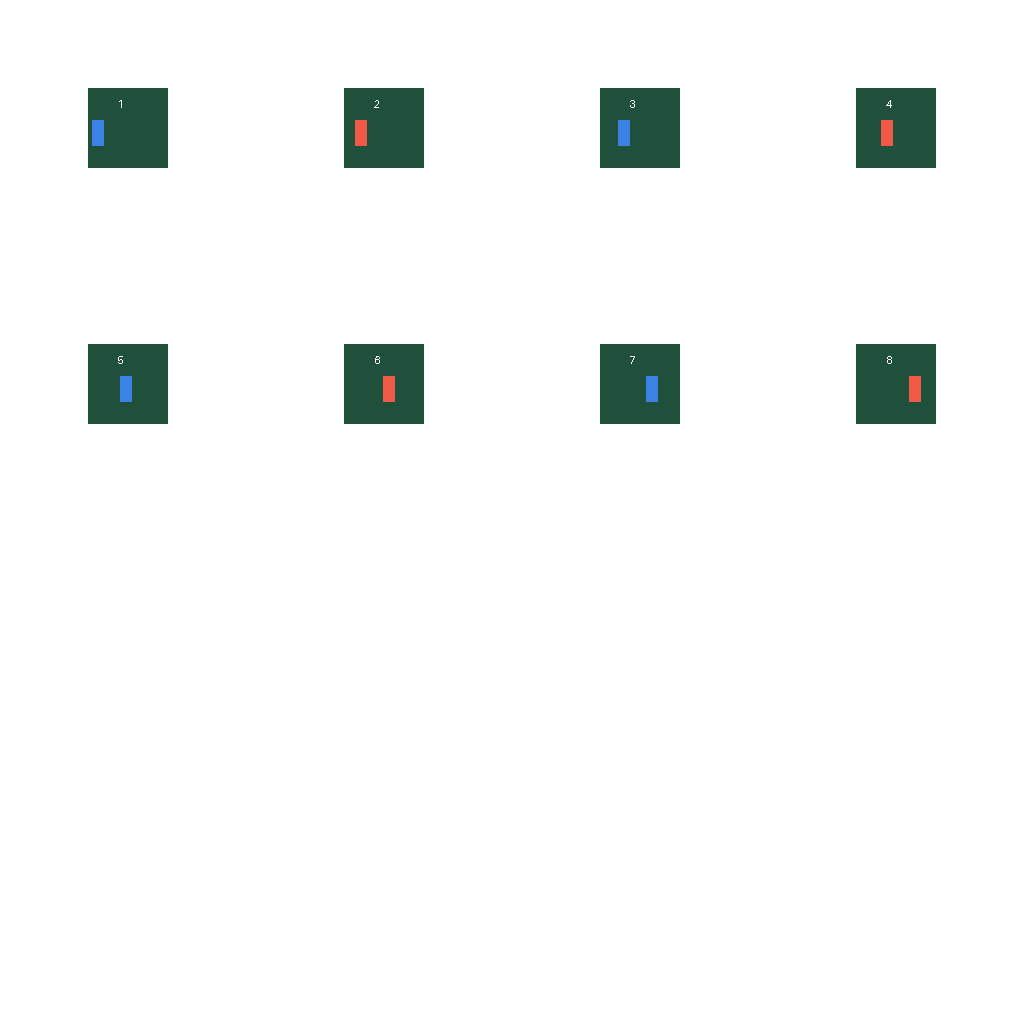
The first export places each source picture once into a 4 × 4 grid. At 10 FPS, its eight active slots represent 8 ÷ 10 = 0.8 seconds. That arrangement retains picture order but does not retain our source's 3.6-second cycle or its changing holds. The PNG is 4,760 bytes; the filename declares eight active frames rather than all sixteen grid cells.
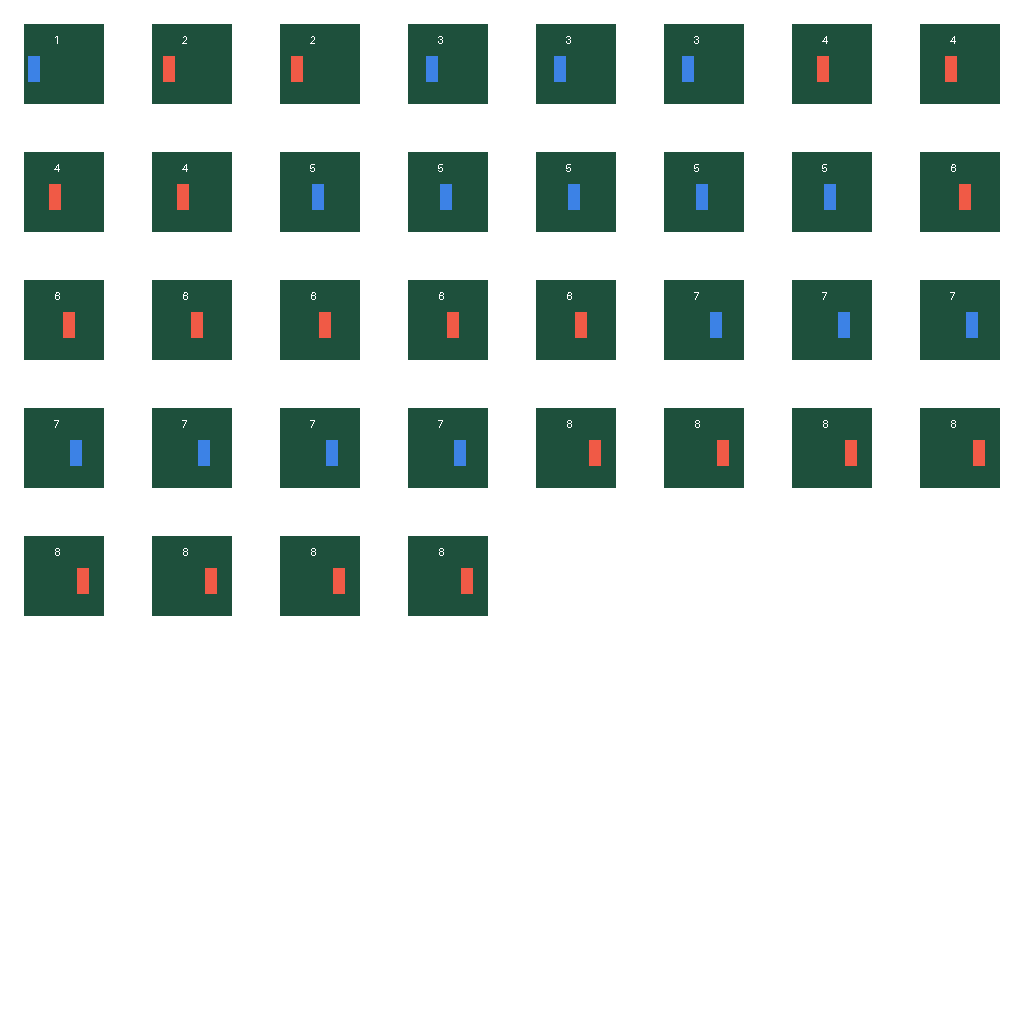
The second export repeats pictures according to their measured holds. At 10 FPS each slot represents 100 ms, so source pictures one through eight occupy [1, 2, 3, 4, 5, 6, 7, 8] slots respectively. Their sum is 36, and 36 ÷ 10 = 3.6 seconds. We place those slots into an 8 × 8 grid. The PNG is 5,810 bytes, with thirty-six active slots and transparent unused cells. Both output images are 1024 × 1024.
For this generated sample, each delay is an exact multiple of the slot duration. No rounding is needed. A GIF with other delays requires a separate rounding or sampling decision; reusing our repetition counts would give the wrong timing. The PNG stores spatial cells, not the source GIF's per-frame delay extensions. The cycle durations here are calculated from active slots divided by the chosen FPS, not measured VRChat playback.
| File | Pictures / active slots | Stored / calculated cycle | Bytes |
|---|---|---|---|
| Source GIF | 8 | 3600 ms | 8,141 |
| one-per-frame_8frames_10fps.png | 8 | 800 ms | 4,760 |
| time-weighted_36frames_10fps.png | 36 | 3600 ms | 5,810 |
Packing checks you can reproduce
We center every original picture inside its cell without scaling it. The picture-only export uses 256-pixel cells and an 80-pixel inset on each axis. The time-weighted export uses 128-pixel cells and a 16-pixel inset. Those offsets follow (cell width − 96) ÷ 2. Extra transparent space keeps the square source intact instead of stretching it to fill the cell.
After saving each PNG, the script reopens it, crops every occupied picture rectangle and compares all RGBA bytes against the corresponding decoded source picture. All eight picture-only crops and all thirty-six time-weighted crops match. It separately checks that every unused cell is transparent. This proves the saved cell contents for our files; it does not prove an uploader chose the intended frame count.
The source indices are written into results.json in output-slot order. For example, time-weighted slots one through six contain source pictures [1, 2, 2, 3, 3, 3]. The final eight slots contain picture eight. This lets you distinguish an intentional repeated hold from accidentally duplicating the wrong image.
Move from the sheet to the emoji preview
- Download a sheet and keep its descriptive filename. Check the dimensions, occupied frame count and chosen FPS against its result record before uploading.
- Open the emoji area of your own VRChat inventory. Use the official upload instructions linked above and enable Sprite Sheet Mode. Check the grid and animation controls actually shown by your account.
- Inspect the numbered sequence in the preview. If empty cells become part of playback, recheck the active frame count rather than adding opaque filler pictures.
- Compare the beginning and ending holds against the source GIF. A sequence that runs in the right order can still use the wrong timing.
- Only save the emoji once the preview matches your intended sequence. Successful PNG generation alone is not evidence of successful VRChat publication.
If a preview looks cropped, first inspect the cell boundaries and source aspect ratio. Changing FPS cannot repair a picture placed across a cell edge. If the preview contains a pause on a blank image, inspect the selected active frame count before regenerating the art.
Download and rerun this exact experiment
Save the source GIF, both sheets, result record and Python script together. Install Pillow 13.0.0, then run python sprite-experiment.py in a local working folder. It creates sprite-experiment-output and stops on a failed cell or transparency assertion. The process has no network requests and does not need your VRChat credentials.
To inspect the timing result independently, add the source delay array to obtain 3,600 ms, count thirty-six active output slots, and divide by 10 FPS. To inspect spatial placement, crop the first occupied 96 × 96 picture at offset (16, 16) in the time-weighted PNG and compare it with source picture one. The supplied record gives the remaining source-to-slot mapping, so you can test more than a selected example.
This recipe does not convert someone else's GIF automatically, resize artwork, or guarantee acceptance by a future uploader. Its useful result is narrower: one downloadable example separates picture count, grid capacity and playback timing, with file checks that can fail if the packing is wrong.
When you need individual pictures instead
A sprite sheet combines pictures into one texture. If your next task needs separate files, extract individually downloadable PNG frames instead. To remove an unwanted picture before arranging the sequence, use the measured frame-removal recipe and re-read the remaining delays. Extraction, deletion and grid packing answer different questions.